
Using AI with Excel: Install ChatGPT, Generate HR Data & Build an Executive Dashboard
A visual step-by-step guide to the ChatGPT add-in in Excel — install, sign in, generate a 500-row Nigerian HR dataset, analyse it, create PivotTables, and ship an executive dashboard. Complete workbook behind a free newsletter signup.
There are two main ways to use Excel with AI:
- Upload a workbook in the ChatGPT app and ask questions about the data, or
- Install an AI add-in (ChatGPT, Claude, etc.) inside Excel and work right from the spreadsheet.
This tutorial focuses on option 2 — the ChatGPT add-in in Excel. Every screenshot below is a real screen from the walkthrough.
What you’ll build: a realistic 500-employee HR dataset (Nigerian names & ₦ salaries) → insights → PivotTables → a one-page Executive HR Dashboard.
1. Install the ChatGPT add-in
First, install the add-in in Excel:
- Click Add-ins on the Home ribbon.
- Click More Add-ins (or Get Add-ins).
- Open the STORE tab, search for “ChatGPT”, click Add, then Continue / Trust.
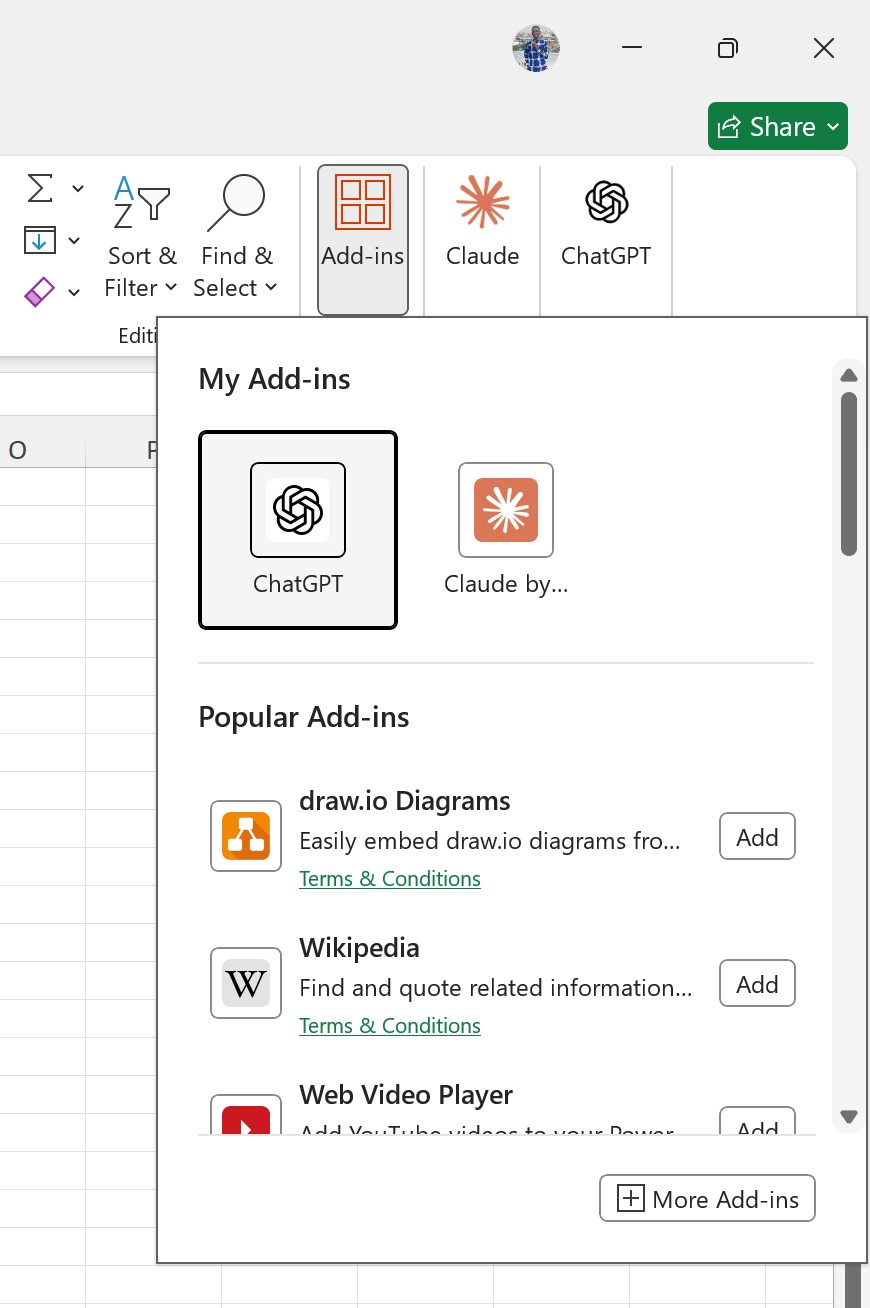
Click Add-ins on the ribbon. If ChatGPT is already listed under My Add-ins you can open it from here; otherwise choose More Add-ins.
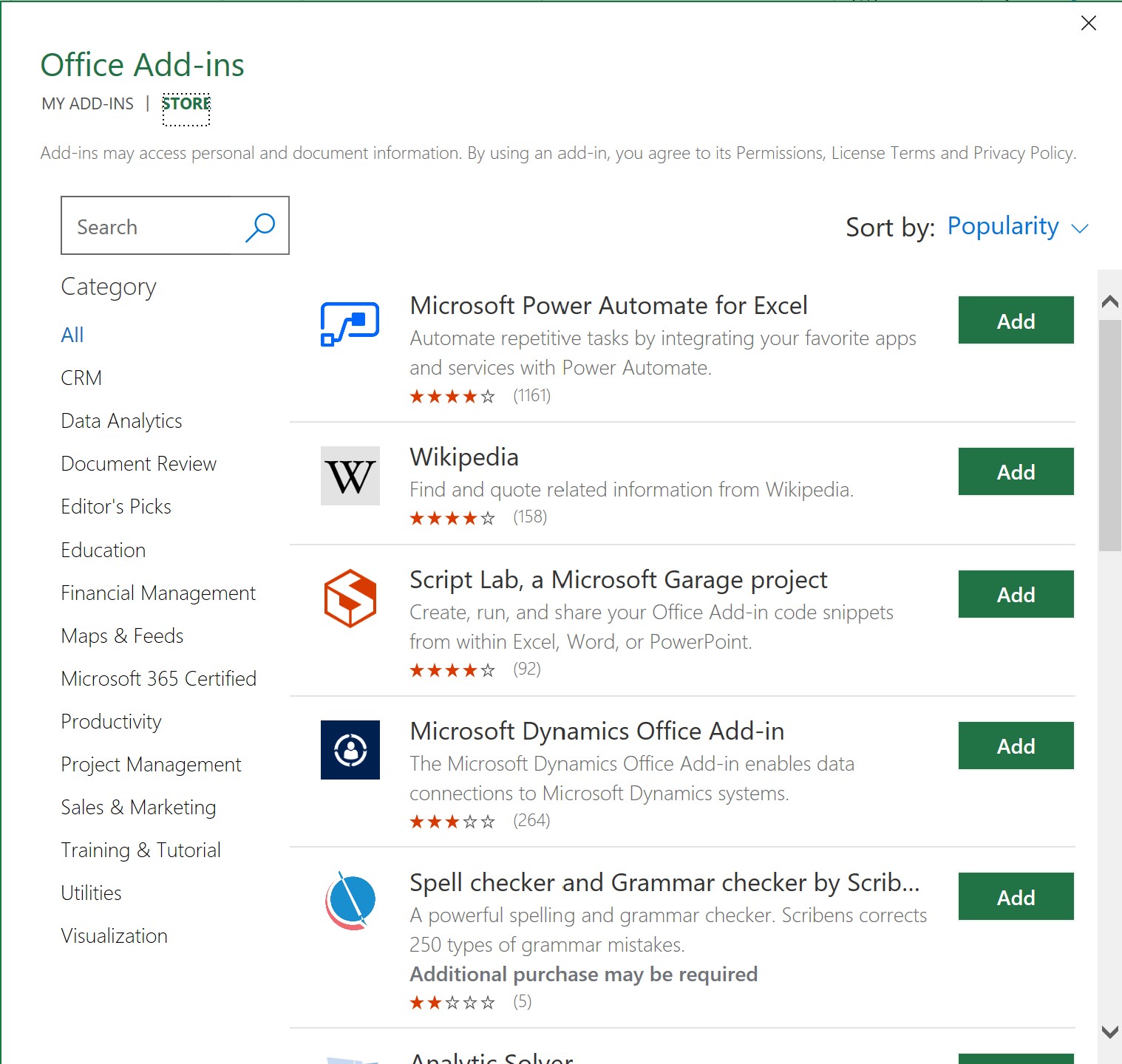
Open the STORE tab and search for ChatGPT.
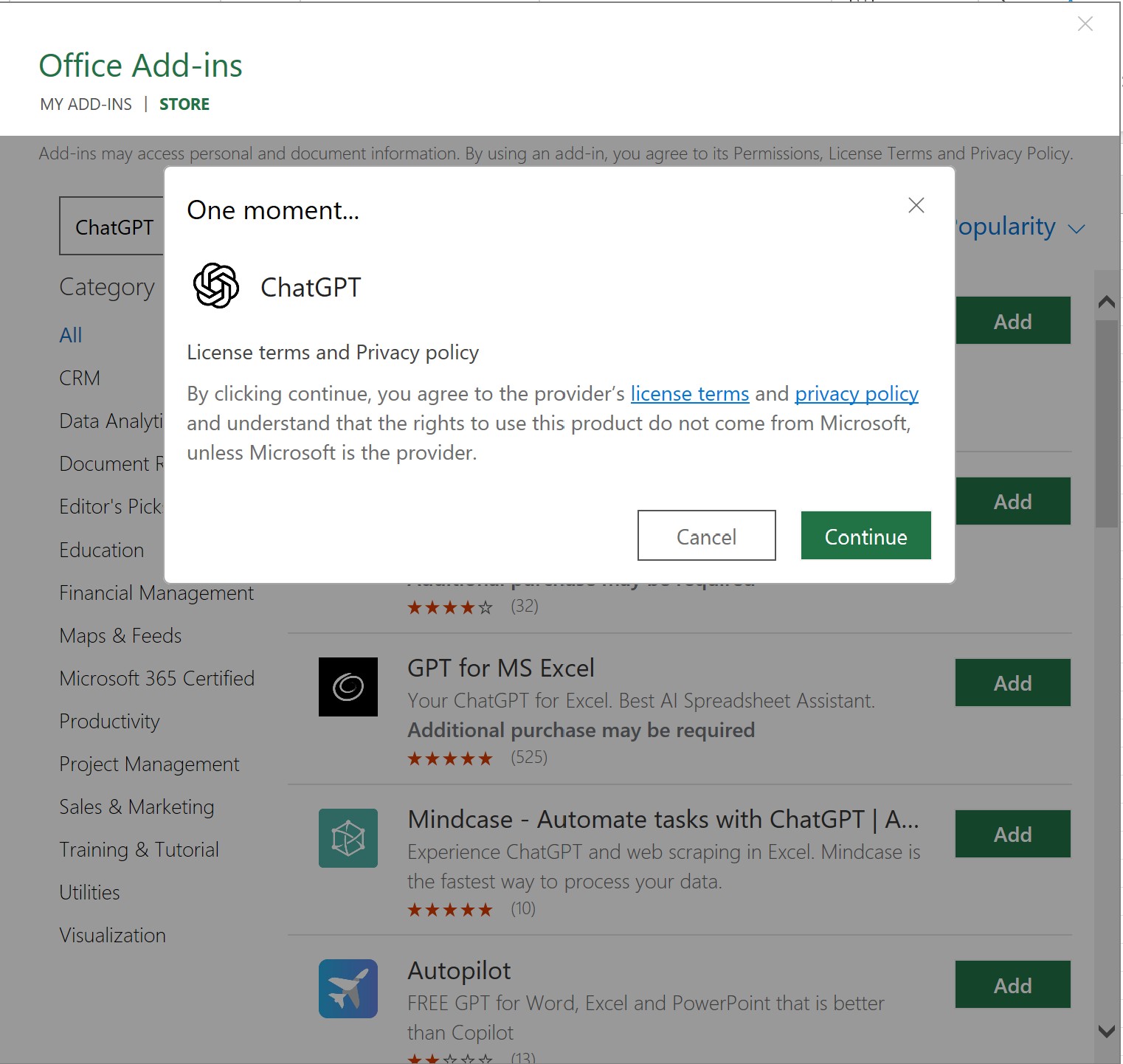
After you click Add, accept the license and press the green Continue button.
2. Sign in to ChatGPT
You’ll land on the ChatGPT login screens. You can continue with your ChatGPT account or use an API key.
Focus on the black “Continue with ChatGPT” button and click it.
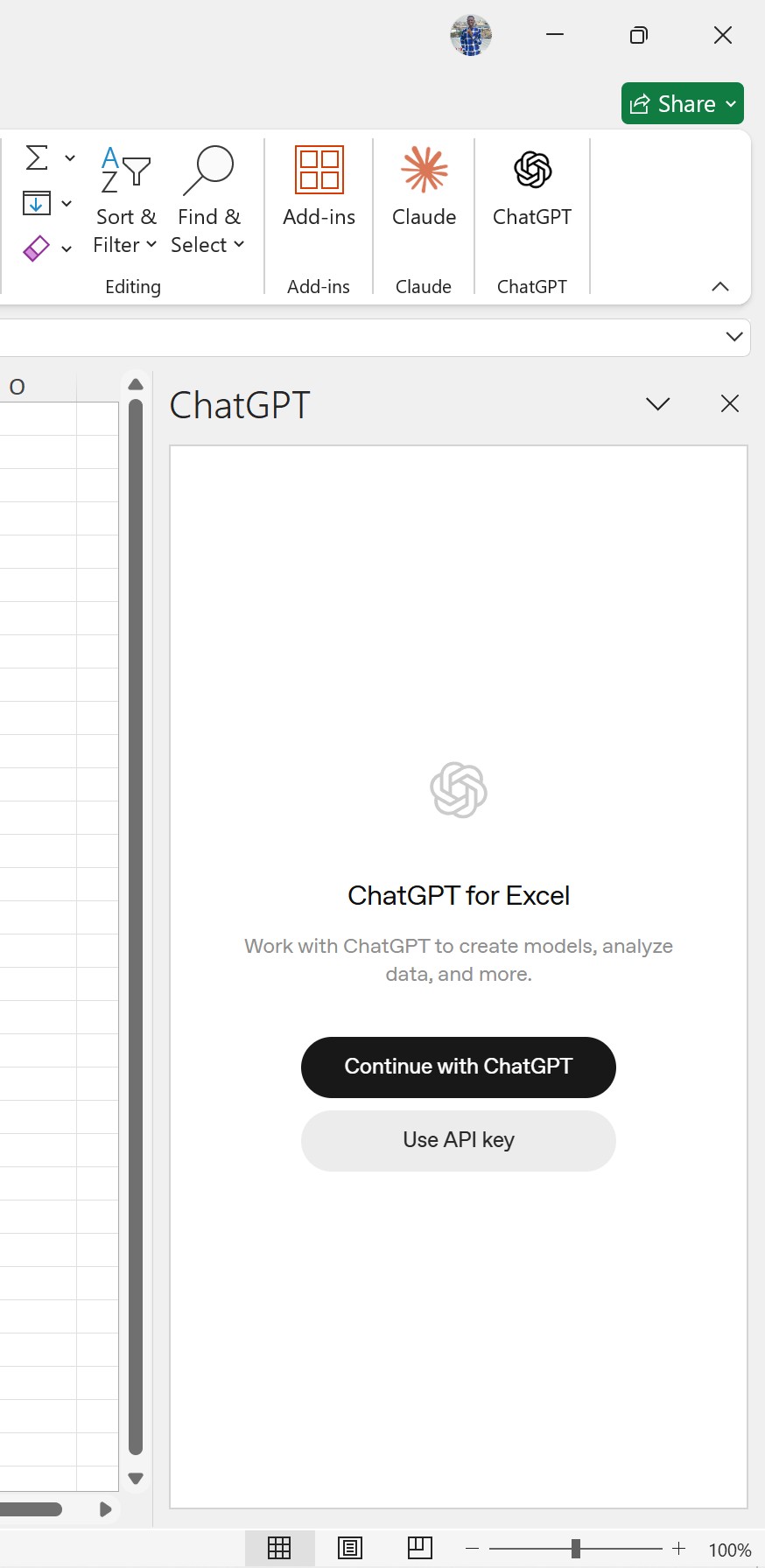
ChatGPT appears on the ribbon after install. In the side panel, click Continue with ChatGPT (unless you prefer an API key).
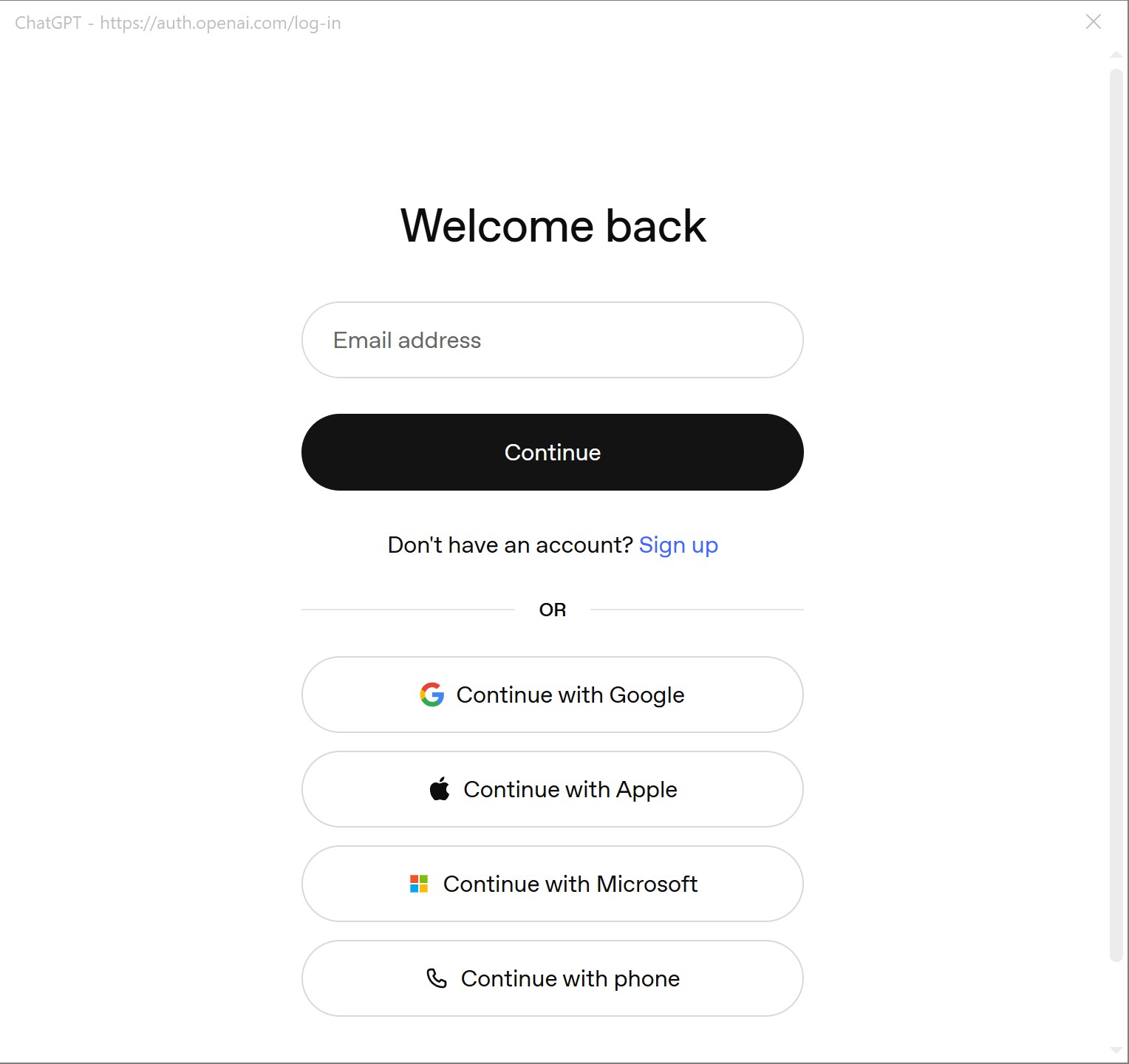
Sign in if you already have an account, or sign up if you don’t. Your page should look like this.
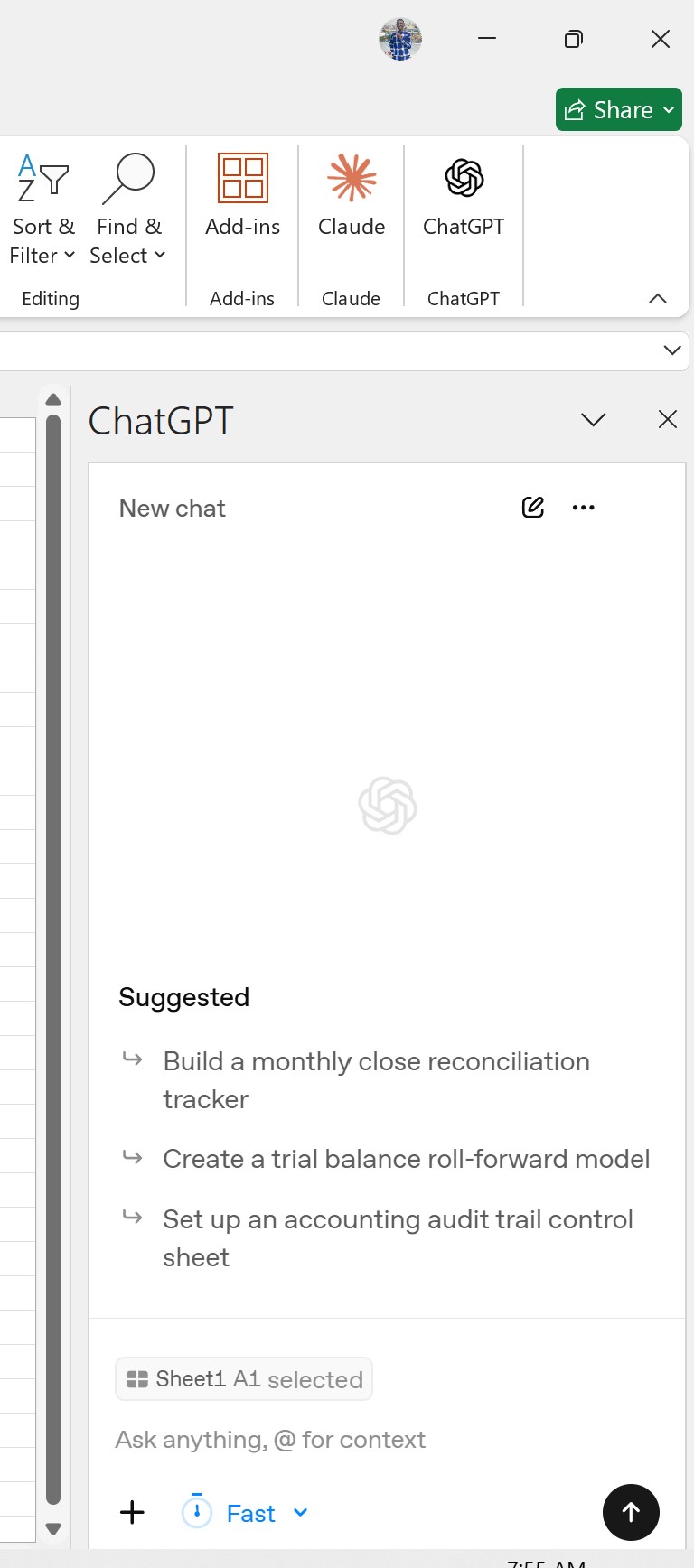
After sign-in the add-in is ready — type prompts in the box at the bottom of the ChatGPT panel.
3. Generate sample HR data
Once signed in, tell ChatGPT what you want to create. For this tutorial, generate dummy HR data with this prompt:
Generate a realistic HR dataset with 500 employees. Include Employee ID, Name, Gender, Department, Job Title, Hire Date, Salary, Performance Rating, Manager, Employment Status, State and Years of Experience. Use realistic Nigerian names and salaries.
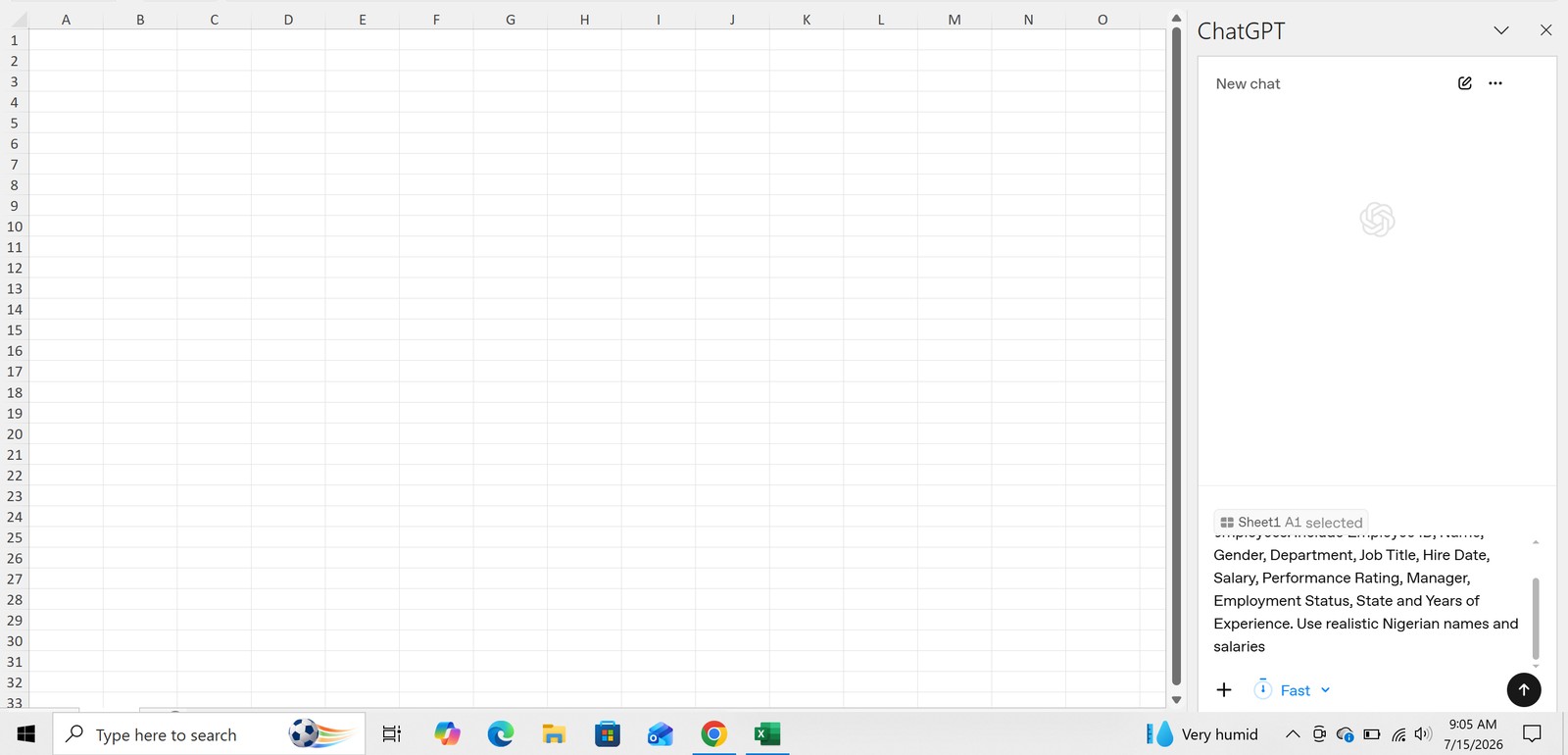
Paste the full prompt into the ChatGPT side panel while a blank sheet is open.
ChatGPT will show an acceptance box. Click Allow for this chat. If you always want it to edit your spreadsheet, choose Always allow.
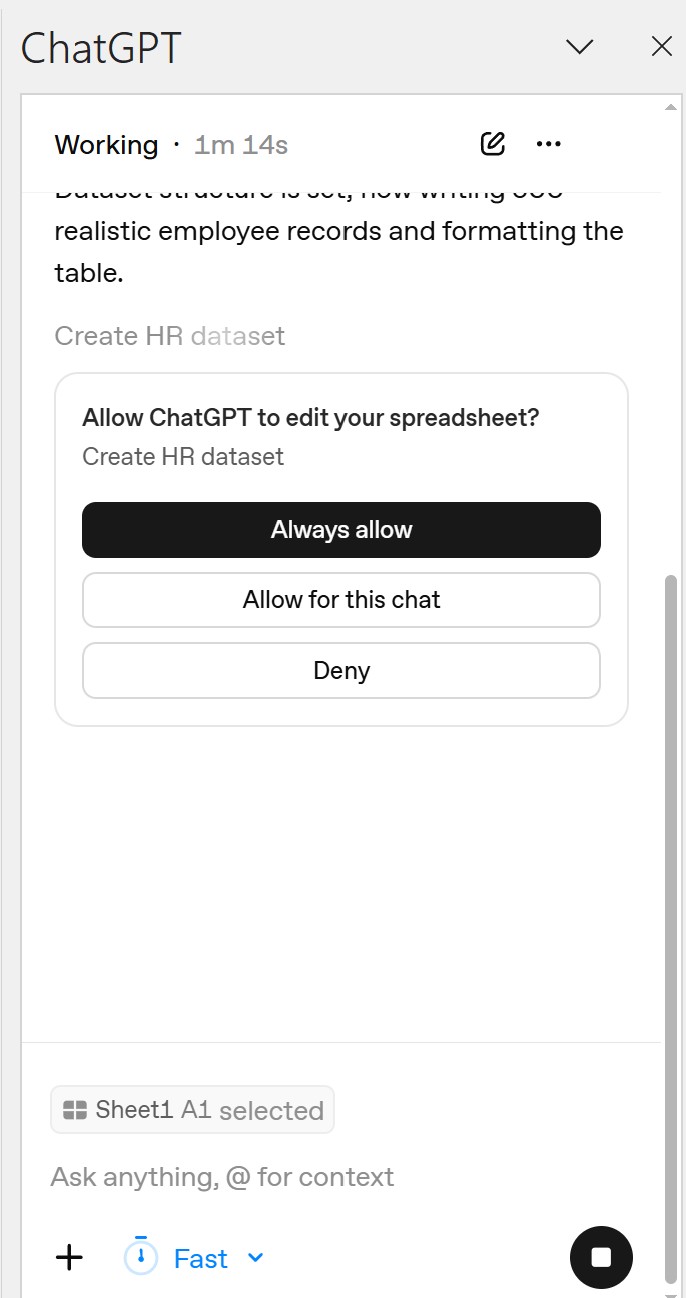
Choose Always allow for a full session, or Allow for this chat for one-off permission. Don’t click Deny if you want the data written into the sheet.
ChatGPT will generate the spreadsheet, describe what it did, and offer an Undo option. Here’s a sample result:
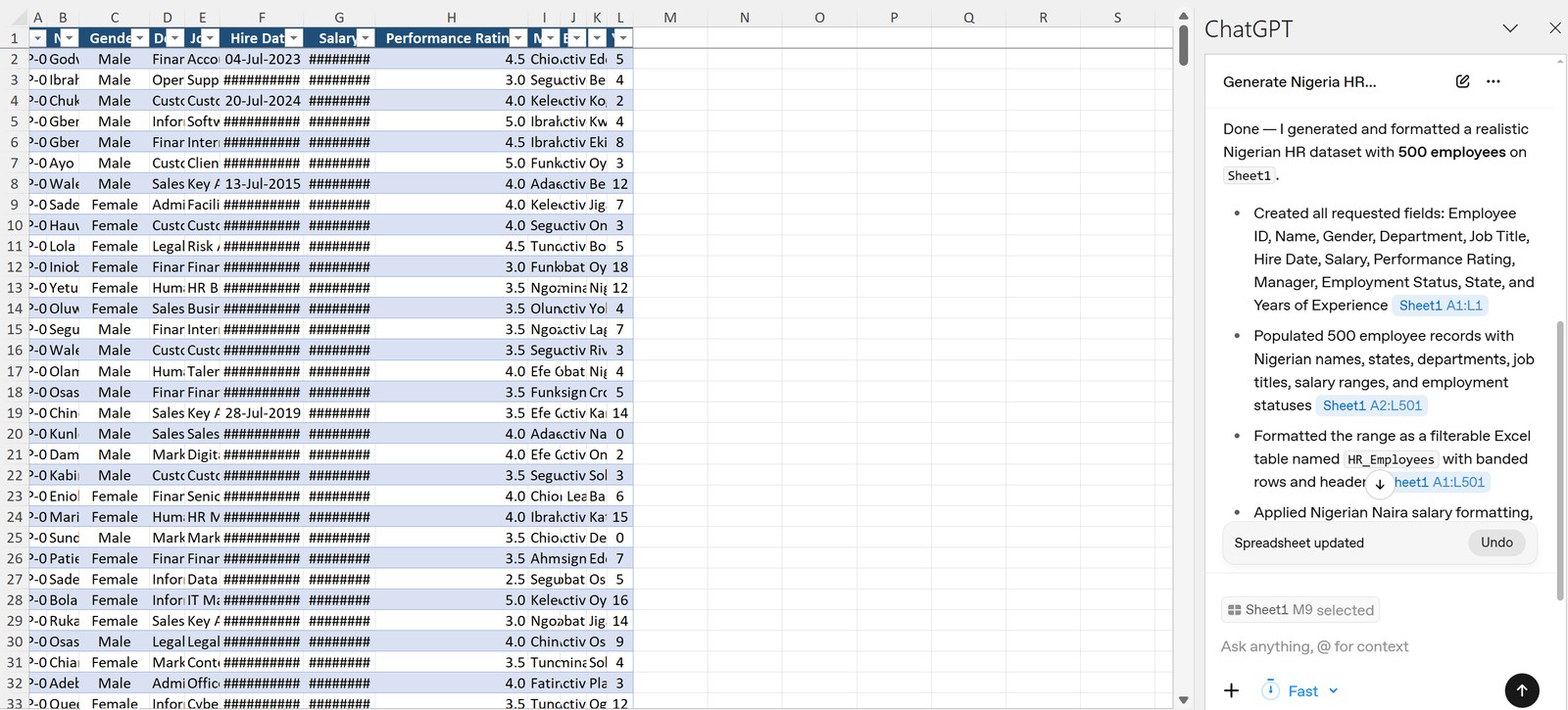
A sample result: Nigerian names and ₦ salaries in the grid, with ChatGPT’s summary (and Undo) on the right.
This is where human judgment matters. ChatGPT may claim the document is well formatted, but you’ll often see squashed columns that need expanding. Adjust them manually, or prompt:
Expand each column to fit the text in it.
4. Format the generated data
To format manually:
- Click the small triangle at the top-left of the sheet (intersection of row numbers and column letters) to select everything.
- Double-click the border between any two column headers to auto-fit the widths.
- Go to the Table Design tab → uncheck Filter Button if you prefer a cleaner look.
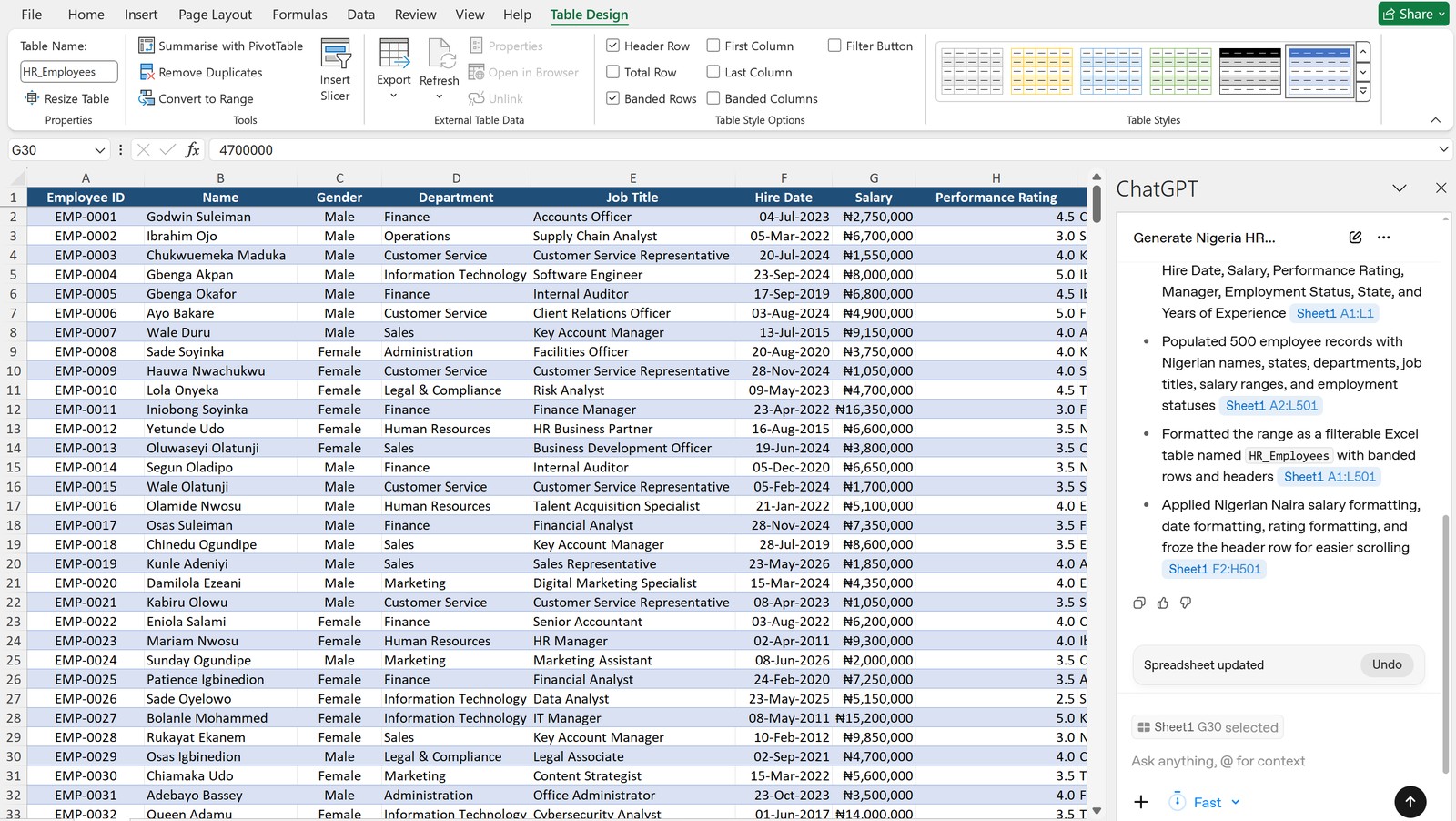
With the table selected, open Table Design and uncheck Filter Button if you want a cleaner look. Auto-fit columns by double-clicking the border between headers.
5. Analyse the dataset
Use this prompt:
Analyse this dataset and identify key insights, trends, outliers and potential HR issues.
As it works, ChatGPT shows the steps it’s taking in the chat.
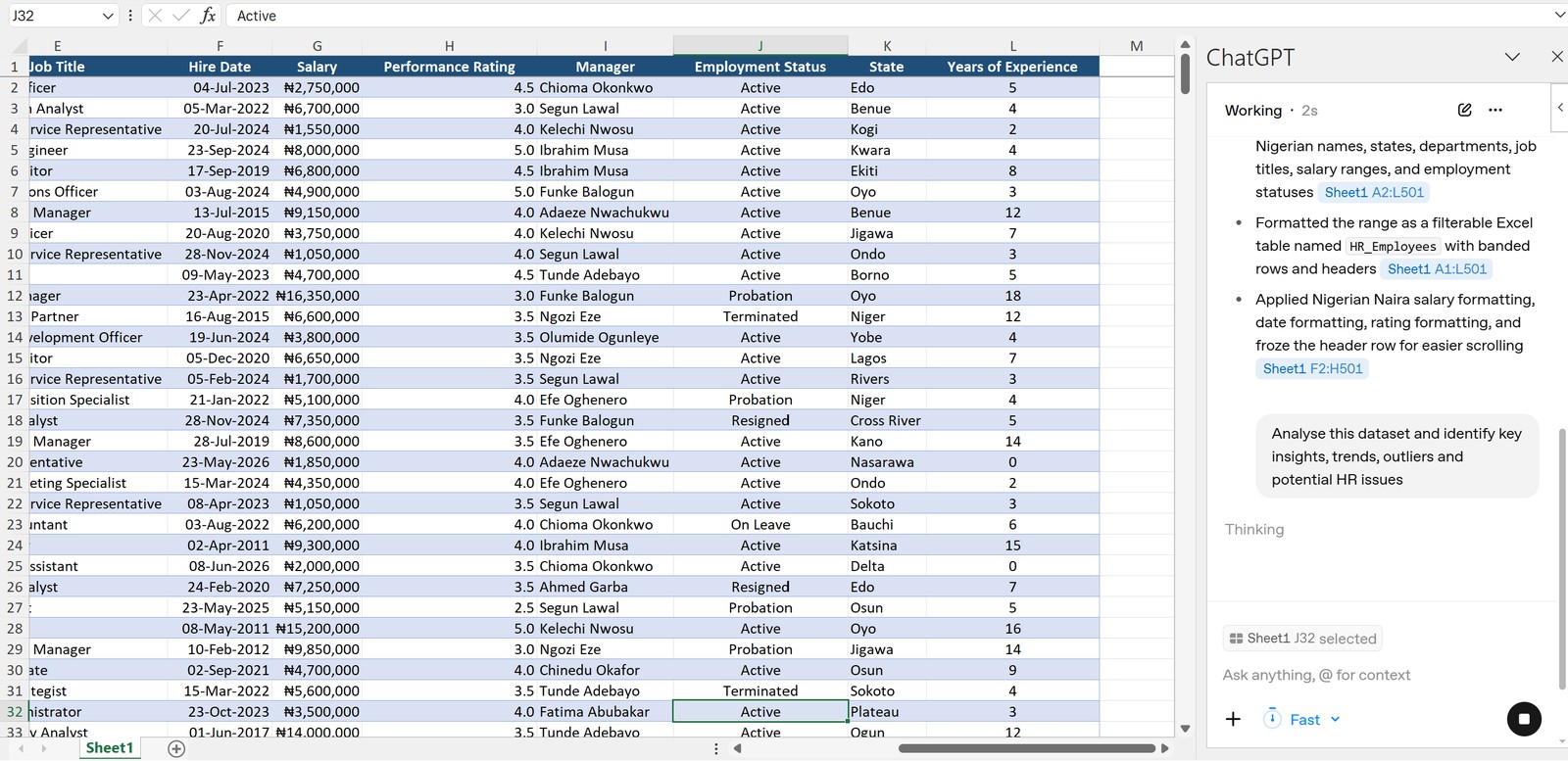
Run the analyse prompt; insights appear in the ChatGPT panel while the employee table stays open on the left.
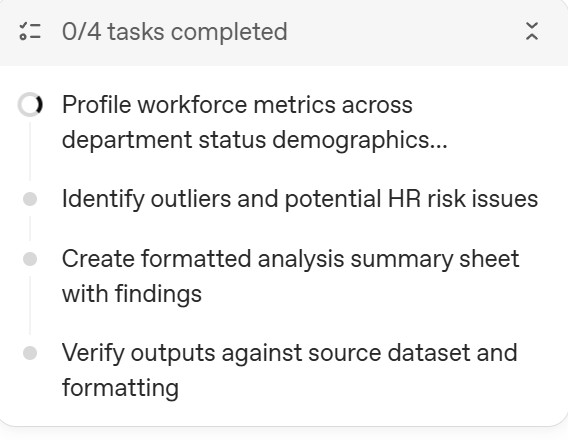
While reasoning, ChatGPT shows its plan (profile metrics → outliers → summary sheet → verify). Use this to check whether it’s on the right track.
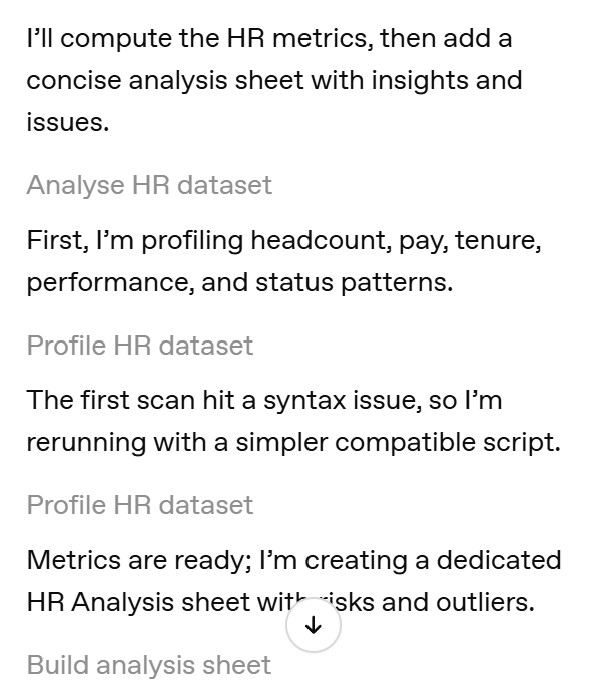
Chain-of-thought style progress — useful when you want to interrupt or refine mid-run.
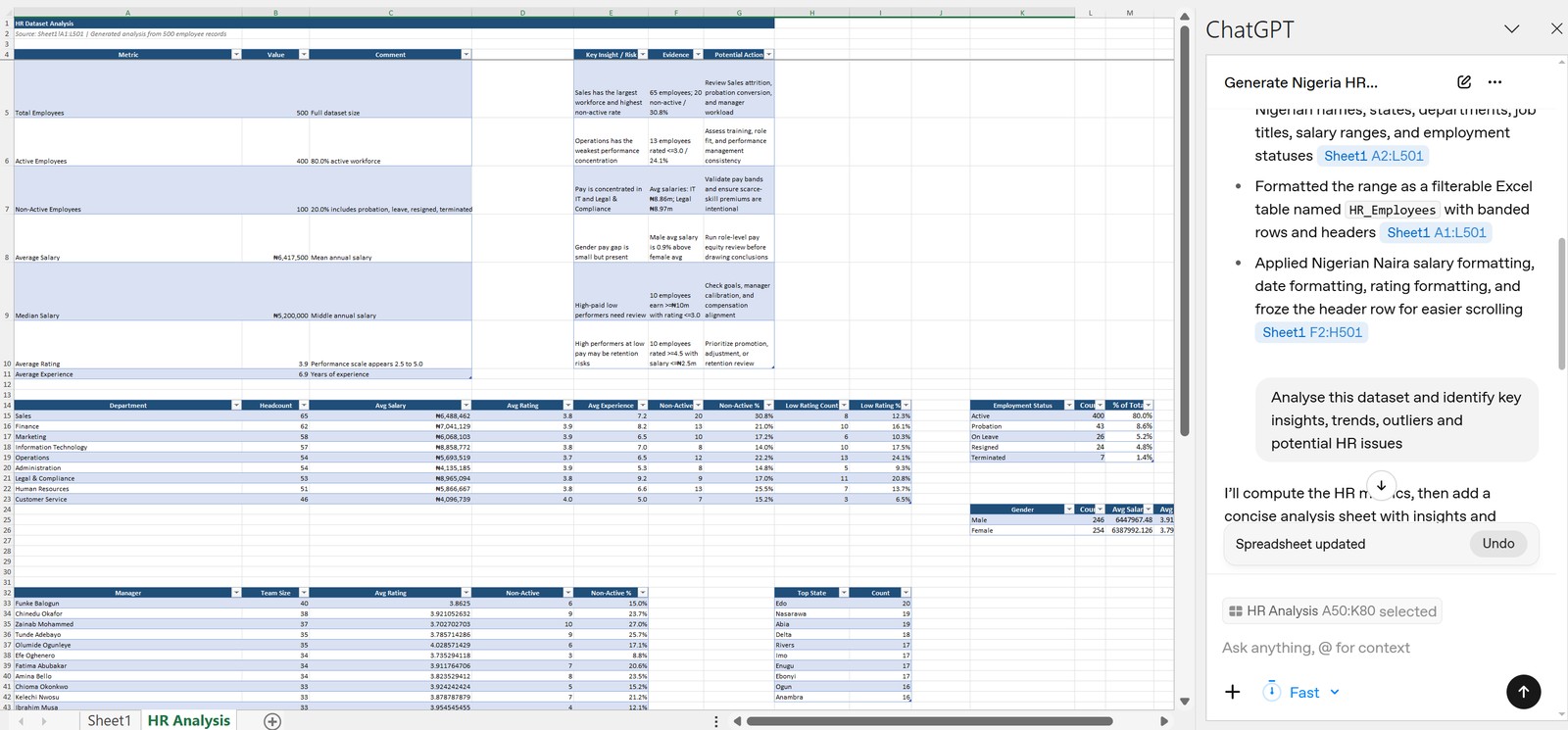
Typical output: a dedicated HR Analysis sheet with key insights, trends, and risk flags you can hand to leadership.
6. Create PivotTables
Try this prompt next:
Create 10 PivotTables that would provide meaningful HR insights from this dataset.
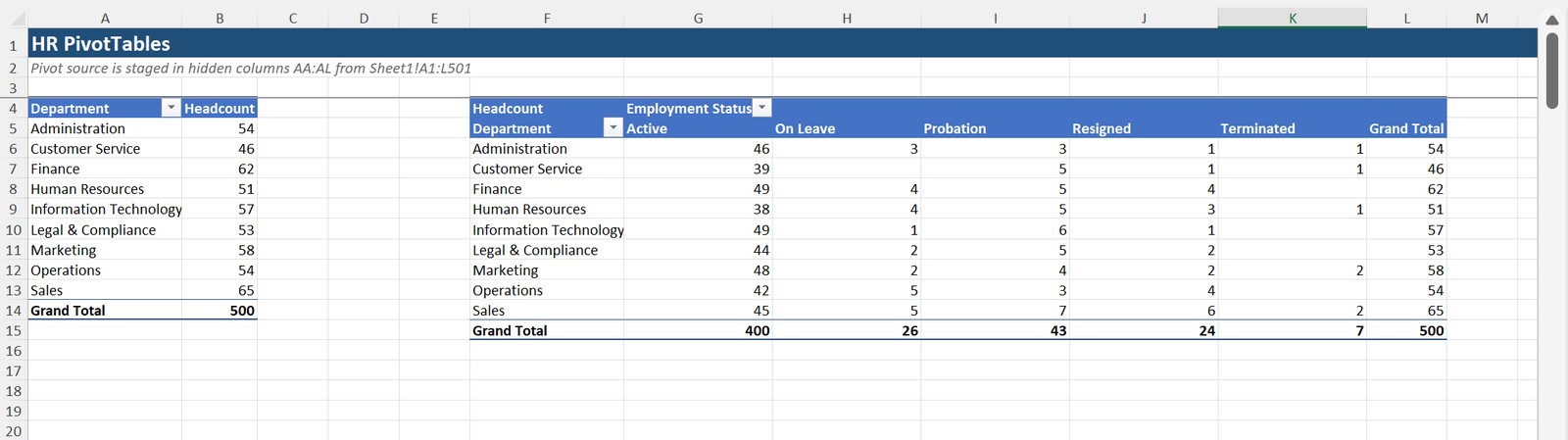
ChatGPT can lay out multiple PivotTables — headcount, salary by department, status, gender, and more — on a dedicated sheet.
7. Build an executive HR dashboard
Switch models if you like, but use the same process with a prompt like this (plus a few tweaks of your own):
Design an executive HR dashboard in Excel using this dataset. Recommend KPIs, slicers, charts, colours and layout.
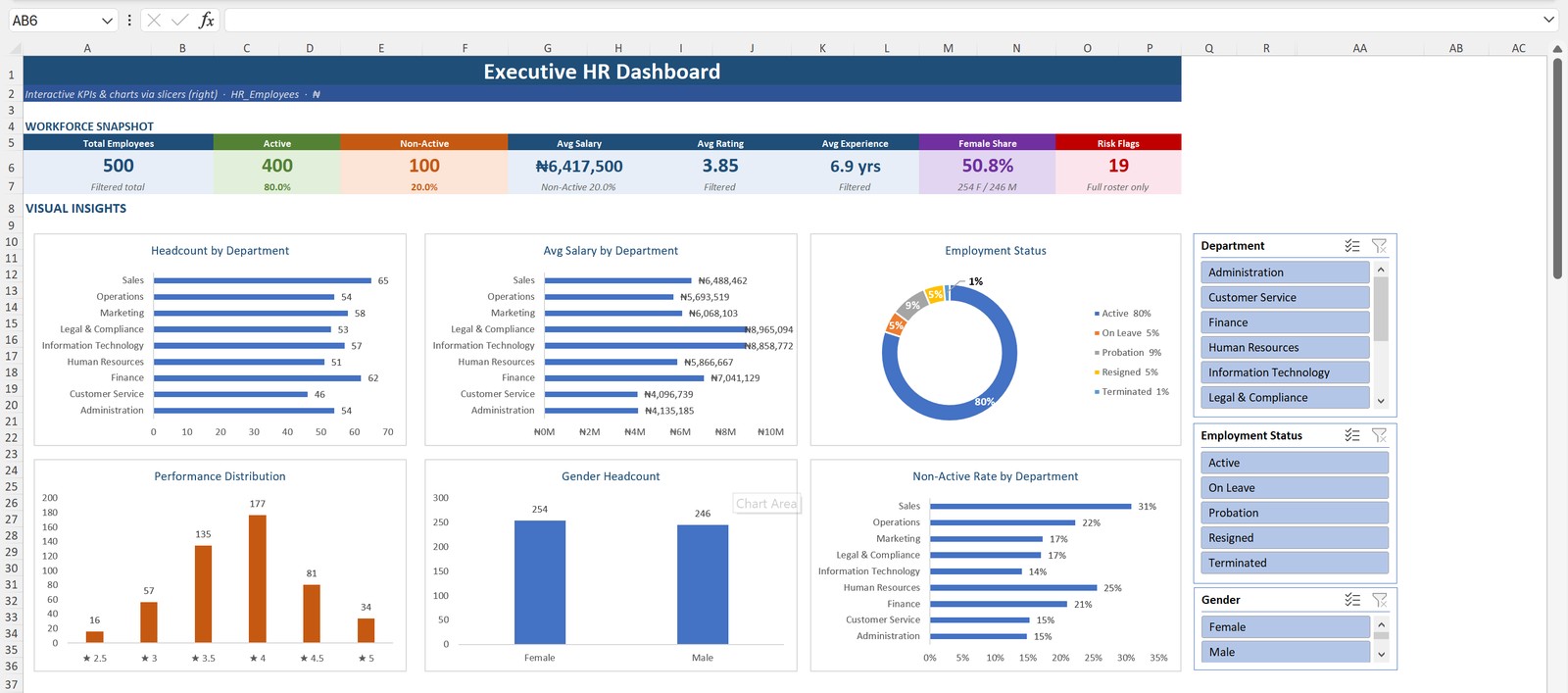
Here’s a finished result:
Finished board: KPI snapshot row, labelled charts, interactive slicers (Department, Status, Gender), and the Executive Dashboard sheet tab. Use the slicers to filter charts live — leadership can ask “show only Operations” without rebuilding the board.
More prompts to try
Generate the dataset with the first prompt (or download the complete file below), then paste these into the ChatGPT add-in:
- Which department has the highest average salary?
- Which employees are due for promotion?
- Which location has the highest employee turnover?
- Who are the top 10 highest-paid employees?
- What is the gender distribution by department?
- Suggest repetitive HR tasks in this workbook that could be automated using Excel formulas, Power Query, or VBA.
- Using this HR dataset, write the Excel formulas needed to calculate Age from Date of Birth, Years of Service from Hire Date, Annual Salary from Monthly Salary, and classify employees as Junior, Mid-Level, or Senior based on years of service.
Your turn to practice
Subscribe once with your email to unlock the complete HR Analysis workbook below. One newsletter signup is remembered in this browser, so you won’t be asked again on other PixelAnchor blog downloads.
Then install the ChatGPT add-in, open the file, and try the prompts above — or generate a fresh dataset from a blank sheet and compare.
Related: Excel training · Corporate AI programmes.
Newsletter · free download
Download the complete HR Analysis workbook
Subscribe with your email to unlock the full completed workbook — 500 Nigerian employee records, HR analysis sheet, PivotTables, executive dashboard, and design notes. One signup unlocks downloads across our blog.
Train with PixelAnchor
Turn these ideas into team capability with live corporate AI, data, and Excel programmes.